

How to Enable Anynet+(HDMI CEC) & ARC on Samsung TV
Mar 20,2025 | David Harrington
Part 1: Introduction
Target Audience
This guide is intended for individuals who want to connect their Samsung TV to an external third-party audio system to enhance their sound quality. If you're using a non-Samsung ARC-compatible soundbar or audio system, or if your audio system is non-ARC and requires an ARC Audio Extractor like the Aodafy ADF-H103-ARC, you'll need to manually enable Anynet+(HDMI CEC) and ARC to ensure optimal performance.
Benefits of Using ARC
ARC (Audio Return Channel) allows your TV to send audio signals to your external audio system, eliminating the need for additional cables and providing a cleaner setup. It also enables better audio quality and reduces latency, ensuring your sound is perfectly synchronized with your video.
Part 2: Why Manual Setup is Required
Reason 1: Samsung Smart TV's Default Settings
As mentioned on Samsung's official website, Anynet+ (HDMI CEC) is activated in the factory for Samsung Soundbar and Home Cinema System. If your device is other than these, you need to make sure that the Anynet+ (HDMI-CEC) function is activated on your Smart TV manually. That means, if your audio system is from another brand, you need to activate it manually.
![Anynet + (HDMI CEC) is activated in the factory for Samsung Soundbar and Home Cinema System]() Anynet+ hdmi cec statement from Samsung
Anynet+ hdmi cec statement from Samsung
-setting-in-Samsung-TV-0.jpeg?w=1200&h=415) Anynet+ hdmi cec statement from Samsung
Anynet+ hdmi cec statement from SamsungSee the statement in Samsung website link: https://www.samsung.com/latin_en/support/tv-audio-video/how-to-use-hdmi-arc-on-samsung-smart-tv/
Reason 2: Non-ARC Audio Systems
If your audio system is non-ARC and you're using an ARC Audio Extractor like the Aodafy ADF-H103-ARC, you also need to manually enable Anynet+(HDMI CEC) & ARC to ensure proper connectivity and audio performance.
Part 3: Step-by-Step Setup Guide
-
Connect Your Devices: Use an HDMI cable to connect the ARC Audio devices or ARC/eARC audio converter to the Samsung TV’s HDMI ARC port.
-
Access TV Menu: Press the "Menu" button on your TV remote to open the TV’s menu.
-
Enable Anynet+ (HDMI-CEC): Go to System > General, find and enable Anynet+ (HDMI-CEC).
![activate Anynet+ HDMI CEC on Samsung TV, then select HDMI ARC as the sound output device]()
-
Configure Sound Output: Return to the menu, go to the Sound section, find the Sound Output option, and select Audio System (HDMI).
![Set sound output device to Audio System HDMI on samsung TV, then you can use arc audio extractor]()
-
Exit Menu: After completing the settings, return and exit the menu.
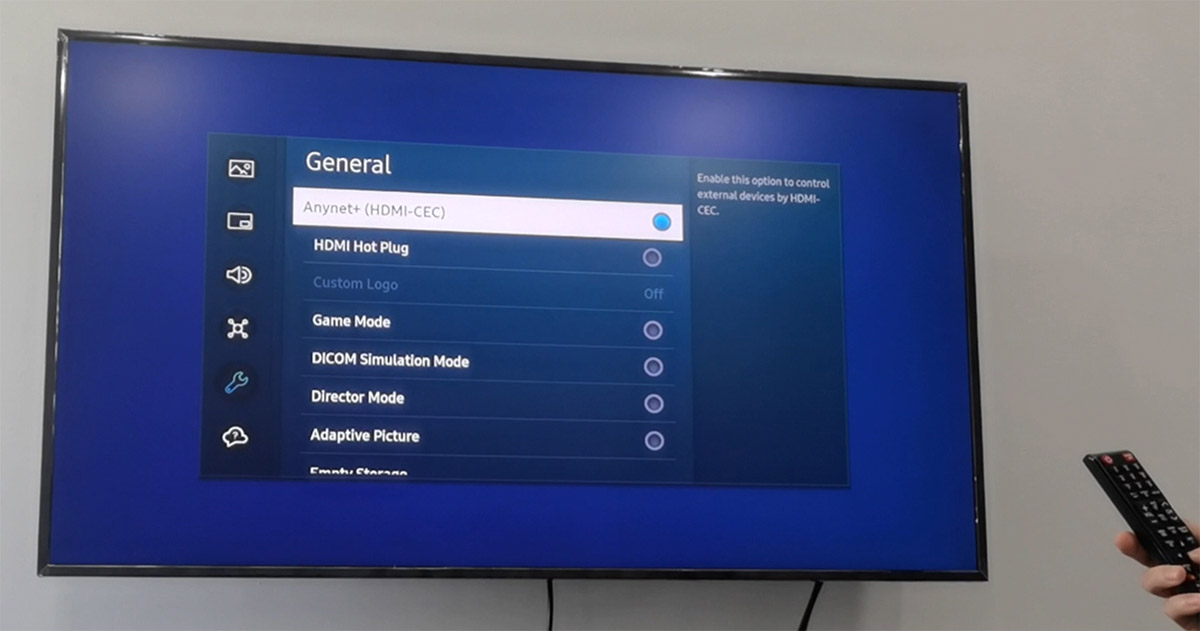
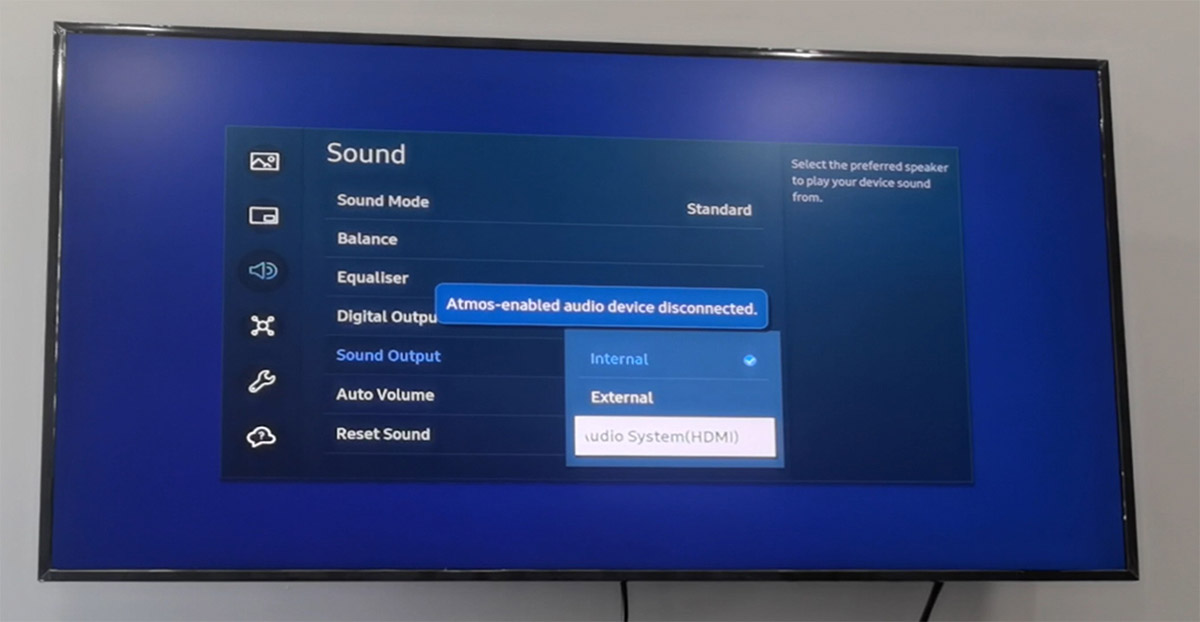
You can now use the ARC function on your Samsung Smart TV! For a visual guide, watch our tutorial video as below.
Note: The setting location may be vary based on different TV model, here is the statement from Samsung TV site:

Anynet+ hdmi set location for Samsung TV
Part 4: ARC Audio Extractor ADF-H103-ARC
The Aodafy ARC Audio Extractor(Model: ADF-H103-ARC) is designed to bridge the gap between modern audio technology and your existing audio system. It supports HDMI ARC and converts the signal to Optical, SPDIF, Coaxial, or 3.5mm AUX, allowing you to connect your Samsung TV to a wider range of audio equipment. This adapter is perfect for preserving your investment in quality sound while embracing contemporary connectivity.
Here are four key features of this product:
-
HDMI ARC to Optical Conversion: The device converts HDMI ARC signals to optical audio, allowing compatibility with audio systems that have optical inputs.
-
Multiple Audio Output Options: It supports multiple audio output formats including SPDIF, coaxial, RCA L/R, and 3.5mm AUX, providing flexibility in connecting to various types of audio equipment.
-
Compatibility with HDTV and Audio Systems: Designed to work with HDTVs and connect to soundbars, speakers, and amplifiers, bridging modern smart TV audio outputs with legacy audio systems.
-
TV Remote Volume Control: Allows users to control the volume of connected RCA and 3.5mm audio systems directly through their TV remote, providing a seamless and convenient user experience.
If you have any questions or need further assistance, feel free to leave a comment below or contact us. We're here to help you enhance your audio experience with Samsung TV and Aodafy products.